Wednesday, September 26, 2018

Tuesday, September 25, 2018
September 25th, 2018. Program: Maya
Work Notes:
Stuff Done:
-I explored the modify area of Maya today
-not as many short cuts as last time
-the modify area has...
-a bunch of transform tools

-has buttons to reset, freeze, and match transformations
-multiple snap and align tools

-has add, edit, delete attribute buttons
-a bunch of convert tools

Short Cuts:
-universal manipulator = Ctrl T
Stuff Done:
-I explored the modify area of Maya today
-not as many short cuts as last time
-the modify area has...
-a bunch of transform tools

-has buttons to reset, freeze, and match transformations
-multiple snap and align tools

-has add, edit, delete attribute buttons
-a bunch of convert tools

Short Cuts:
-universal manipulator = Ctrl T
Monday, September 24, 2018
September 24th, 2018. Program: Maya
Work Notes:
Stuff Done:
-trying to find the zoom function as well as learn or of the commands
-I got rid of all the panels and looked through the file, edit, create, and select areas of the menu

-found a bunch of shortcuts
-the create area has...
-access to multiple auto generated shapes


-vertex = F9
-edge = F10
-face = F11
-vertex face = Alt F9
-UV = F12
-UV shell = Alt F12
Stuff Done:
-trying to find the zoom function as well as learn or of the commands
-I got rid of all the panels and looked through the file, edit, create, and select areas of the menu

-found a bunch of shortcuts
-the create area has...
-access to multiple auto generated shapes


-an option for poly model text creation
-also measuring tools

-some buttons will have boxes next to them, which when clicked allow you to access more settings

Problems:
-I still haven't found the zoom function
-I haven't been able to attach new panels to the work space
-there were lots of buttons that I couldn't figure out
Solutions:
-explore more and experiment
-look online
Stuff To Try Later:
-I've only looked at 4 of the 18 sections of the menu
Short Cuts:
-new scene = Ctrl N
-open scene = Ctrl O
-save = Ctrl S
-save as... = Ctrl Shift S
-undo = Ctrl Z
-redo = Ctrl Y
-repeat action = G
-cut, copy, & paste = Ctrl X, C, V
-duplicate = Ctrl D
-group = Ctrl G
-delete = Delete
-finish action = Enter
-select all = Ctrl Shift A
-deselect all = Alt D
-invert selection = Ctrl Shift I
-set selection focus to...
-all components = F8
-multiple components = F7-edge = F10
-face = F11
-vertex face = Alt F9
-UV = F12
-UV shell = Alt F12
Friday, September 21, 2018
September 21th, 2018. Program: Maya
Work Notes:
Stuff Done:
-I fixed the part of the handle that sticks through the mug


-to do that I just used the target weld tool

-after that I tried to use the hyper shade window to add a texture to the mug
-I decided to use an image of the cake is a lie

-it didn't work out

-I tried to change the images area of coverage but when I managed to get the image on the side of the mug it was distorted
Problems:
-I was able to get the image on the cup but not in the right place
Solutions:
-I was able to change the placement and amount of the image on the cup using the property editor but the image stretched whenever I got it on the side of the cup
-I'll try and find a tutorial later
Stuff To Try Later:
-more experimentation with the hyper shade window
Stuff Done:
-I fixed the part of the handle that sticks through the mug


-to do that I just used the target weld tool

-after that I tried to use the hyper shade window to add a texture to the mug
-I decided to use an image of the cake is a lie

-it didn't work out

-I tried to change the images area of coverage but when I managed to get the image on the side of the mug it was distorted
Problems:
-I was able to get the image on the cup but not in the right place
Solutions:
-I was able to change the placement and amount of the image on the cup using the property editor but the image stretched whenever I got it on the side of the cup
-I'll try and find a tutorial later
Stuff To Try Later:
-more experimentation with the hyper shade window
Thursday, September 20, 2018
September 20th, 2018. Program: Maya
Work Notes:
Stuff Done:
-worked on the coffee cup some more
-taurus = donut shape
-used the create taurus tool to create a donut

-I found a tool that allows you to create area markers
-using that I marked the coordinates the I wanted the handle to be in the pre-placed mug
-after that I selected the faces I didn't need for the handle
-used the delete key to delete the excess parts
-then used the combine objects button to fuse them

Problems:
-the fusion wasn't perfect, the ends of the donut poke through the cup
Solutions:
-I'll try and use some of the more complex modeling tools to edit it later
Stuff To Try Later:
-fixing the handle ends
-applying a material
-adding liquid inside
Stuff Done:
-worked on the coffee cup some more
-taurus = donut shape
-used the create taurus tool to create a donut
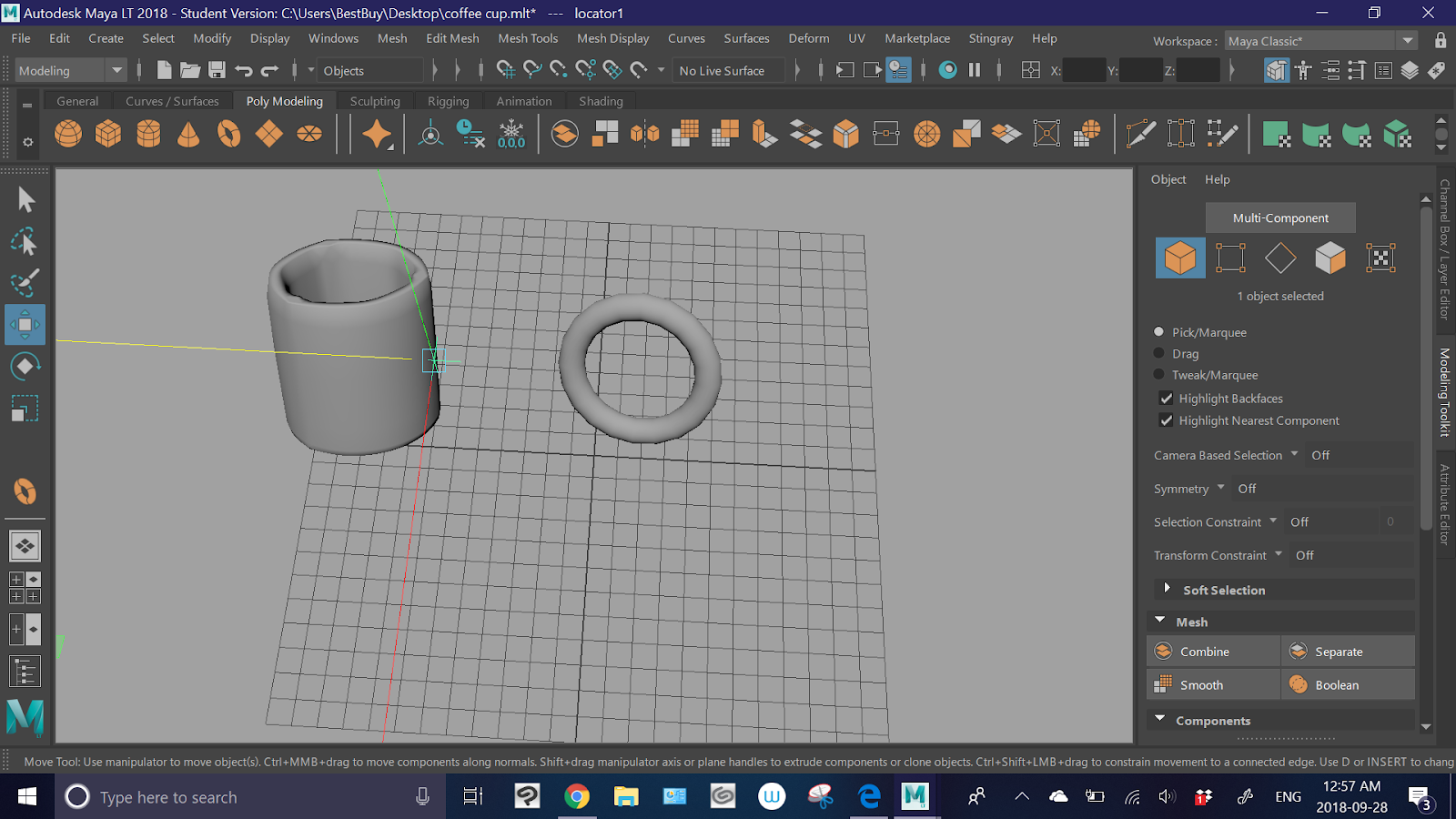
-I found a tool that allows you to create area markers
-using that I marked the coordinates the I wanted the handle to be in the pre-placed mug
-after that I selected the faces I didn't need for the handle
-used the delete key to delete the excess parts
-then used the combine objects button to fuse them

Problems:
-the fusion wasn't perfect, the ends of the donut poke through the cup
Solutions:
-I'll try and use some of the more complex modeling tools to edit it later
Stuff To Try Later:
-fixing the handle ends
-applying a material
-adding liquid inside
Wednesday, September 19, 2018
September 19th, 2018. Program: Maya
Work Notes:
Stuff Done:
-I started making a coffee cup
-I created a flat circle surface

-I used the extrude tool to raise it into a poly model

-I then used the shift key to multi select the separate parts of the surface, around the edge of the top of the cylinder
-using the extrude tool again I raised the edge

-then I used the smooth tool


-I just need to add the handle
Problems:
-I couldn't find a way to adjust how close the camera is to the object with out changing the size of the object
-some of the edges on the cup are still really sharp
Solutions:
-I think later I'll go through the settings
-I can probably use the edge cut and add tools to fix that
Stuff To Try Later:
-create a handle
-fix up the edges
-change the material
-maybe add a liquid inside it
Short Cuts:
-Shift = multi select
Stuff Done:
-I started making a coffee cup
-I created a flat circle surface

-I used the extrude tool to raise it into a poly model

-I then used the shift key to multi select the separate parts of the surface, around the edge of the top of the cylinder
-using the extrude tool again I raised the edge

-then I used the smooth tool


-I just need to add the handle
Problems:
-I couldn't find a way to adjust how close the camera is to the object with out changing the size of the object
-some of the edges on the cup are still really sharp
Solutions:
-I think later I'll go through the settings
-I can probably use the edge cut and add tools to fix that
Stuff To Try Later:
-create a handle
-fix up the edges
-change the material
-maybe add a liquid inside it
Short Cuts:
-Shift = multi select
Tuesday, September 18, 2018
September 18th, 2018. Program: Maya
Work Notes:
Stuff Done:
-I got the texturing to work on my home computer
-I spawned a simple cube poly model, then opened the hyper shade window. after that, instead of trying to add a new material to the poly model I edited the material already there.
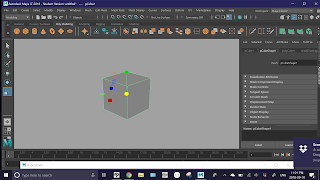


-all I did was change the colors and transparency
Problems:
-I haven't figured out how to use an image as a texture yet
-or how to add multiple textures
Solutions:
-EXPERIMENTATION!!!!!!
Stuff To Try Later:
-using images as textures
Stuff Done:
-I got the texturing to work on my home computer
-I spawned a simple cube poly model, then opened the hyper shade window. after that, instead of trying to add a new material to the poly model I edited the material already there.


Problems:
-I haven't figured out how to use an image as a texture yet
-or how to add multiple textures
Solutions:
-EXPERIMENTATION!!!!!!
Stuff To Try Later:
-using images as textures
Subscribe to:
Posts (Atom)